|
Getting your Trinity Audio player ready...
|
If you’ve been migrating codeplugs, backing up radio data, or combining regional frequency lists using the OpenGD77 CPS (Codeplug Programming Software version R2025.03.23.01) CSV import/export features, you might have run into a baffling error message:
Line -2 is not valid in APRS.csv and will be skipped
A negative line number? How does a parser even arrive at Line -2?
If you’ve encountered this while building or restoring your codeplug, you aren’t crazy, and your file isn’t corrupted. It’s actually caused by a subtle CSV formatting bug inside the OpenGD77 CPS software itself. Here is what’s happening under the hood and how to fix it for good.
Table of Contents
The Anatomy of the Bug
When you export your codeplug data to CSV files via File $\rightarrow$ CSV $\rightarrow$ Export, the CPS creates individual files for your Channels, Contacts, Zones, and APRS settings.
The issue stems from the APRS.csv file and a pre-populated default setting inside the software.
-
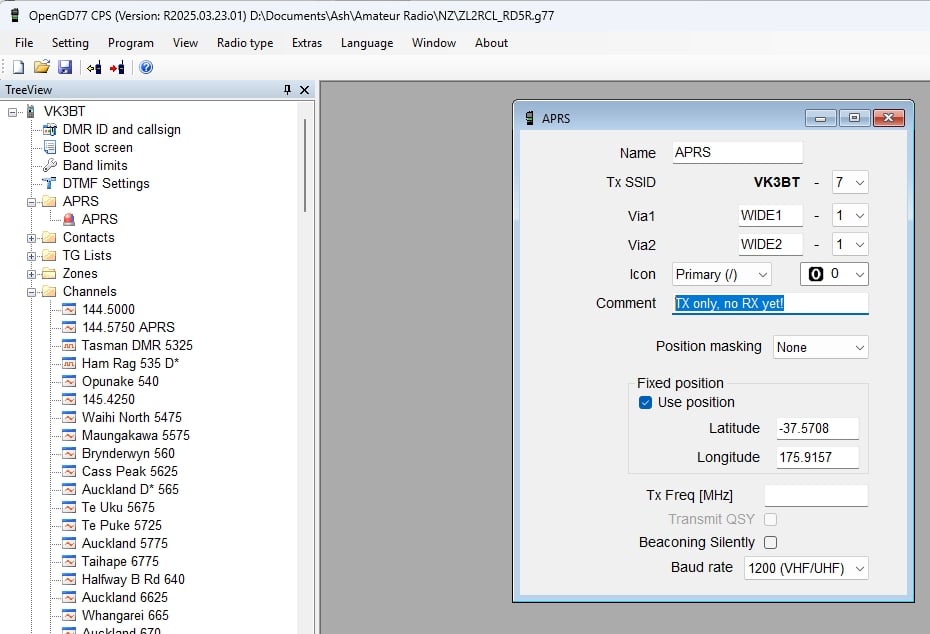
The Default Text: By default, new APRS configurations created in OpenGD77 CPS come with the built-in comment:
TX only, no RX yet! -
The Export Failure: When exporting to CSV, the software writes this text field directly into
APRS.csvwithout wrapping strings containing punctuation in quotation marks. -
The Naive Importer: When you try to import that same folder back into CPS, the CSV parser breaks lines strictly on commas. Because of the comma inside
"TX only, no RX yet!", line 2 gets split into 17 columns instead of the expected 16. -
The Negative Line Error: The extra column throws off the internal array indexing during validation, causing the importer’s error-handling function to miscalculate the row index and display the infamous
Line -2error.
How to Fix It
Depending on whether you prefer editing raw CSV files or adjusting software settings, there are two quick ways to fix this.
Option 1: Edit APRS.csv Directly
Open your APRS.csv file in a text editor like Notepad or Notepad++.
Look at line 2:
APRS,7,WIDE1,1,WIDE2,1,0,15,TX only, no RX yet!,0,True,-37.5708,175.9157,,False,0
To resolve the extra comma, you can either remove the inner comma:
APRS,7,WIDE1,1,WIDE2,1,0,15,TX only no RX yet!,0,True,-37.5708,175.9157,,False,0
Or wrap the comment in double quotes:
APRS,7,WIDE1,1,WIDE2,1,0,15,"TX only, no RX yet!",0,True,-37.5708,175.9157,,False,0
Save the file and re-run your CSV import—it will load cleanly.
Option 2: Fix It in CPS (Permanent Fix)
To prevent the software from generating broken CSV exports in the future:
-
Open OpenGD77 CPS and navigate to APRS in the left TreeView menu.
-
Open your APRS configuration profile.
-
Click into the Comment field and delete the comma (e.g., change it to
TX only no RX yet!or replace it with your callsign/custom text). -
Save your codeplug (
.g77).
Any future CSV exports from this codeplug will export without internal commas, preventing APRS.csv from failing on re-import.
Takeaway
CSV export/import is one of the most powerful features of OpenGD77 CPS for bulk-editing repeaters and merging codeplugs across regions. If you ever get an index error or invalid line warning, remember to check for missing columns or unquoted commas inside text fields!